
This guide is for anyone about to send a campaign to a list gathered from sign-up forms, events or an old export. Mistyped and made-up addresses bounce, and someone listed twice can get your email twice. You'll fix what can be fixed safely, flag what can't, find the repeat contacts, and export a clean list for your email tool, with the problem rows in a file of their own.
1. Decide whether to check domains
Cleansable cleans and checks addresses on its servers in Oregon, United States, without looking anything up. If you also want each address's domain checked for a mail server, turn on External Lookups in Settings → Privacy & Data before you add the list. Only the domain is sent, in a DNS lookup, never the rest of the row. The switch is off by default, and each run's privacy receipt records whether anything was looked up. Security & privacy has the details.
2. Add the list in Guided Mode
Choose Add Data, then Guided Mode, and import the CSV or Excel file, or paste the rows from a spreadsheet. Guided Mode matters here: Quick Clean runs only each field's default cleaning, and the checks below are extras you turn on yourself. In Map Fields, make sure the address column is mapped as Email.
3. Clean and check the addresses
In Cleansing Options, Clean Email is always on. It lowercases each address, fixes common typos such as gmial.com or .con, and repairs spellings like jane [at] example.com; preview it on your own addresses first. What it can't fix safely is flagged in the Error column for the field: placeholders such as test@test.com or n/a, a missing @, an ending that doesn't exist, a no-reply address, a lookalike of a big provider's domain.
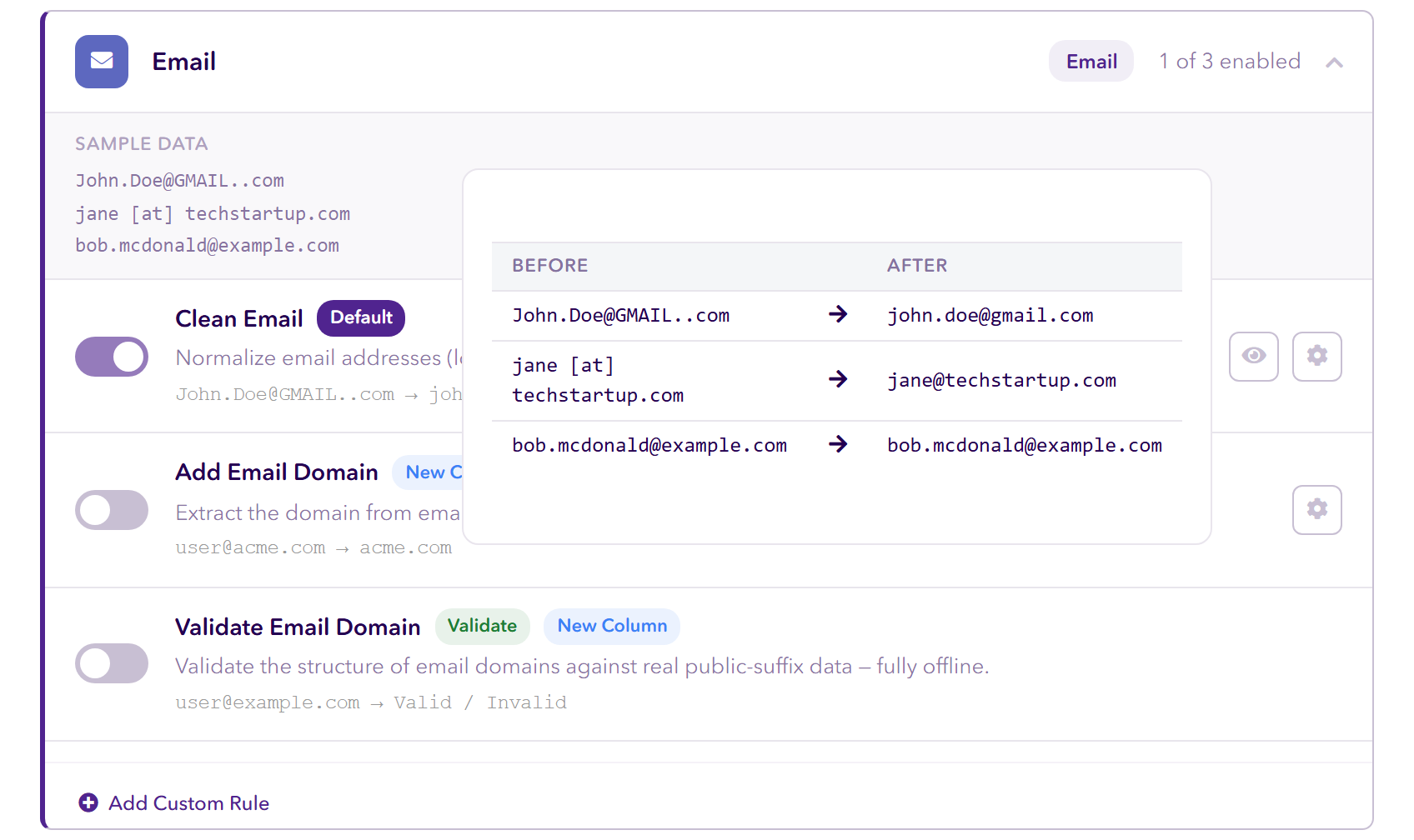
Then turn on the checks you want. Validate Email Domain checks each domain's structure against public-suffix data. With External Lookups on, Validate Email also checks the domain's DNS records and labels each address in a new Email Validation column: Valid, Invalid, Disposable Email Address, Role-Based Address, Suspected Typo, No Mail Server or Unknown. Recommended turns on every check at once.
4. Flag repeat contacts
On the Dedupe step, Smart mode starts with the email rule: the same mailbox however it's written, with a display name, mailto: or a +tag, while a shared inbox such as info@ is never treated as one person. If the list also has names with phone numbers or companies, the Smart rules for those join in. Choose Preview Duplicates to see the groups before the run.
5. Run it and export three files
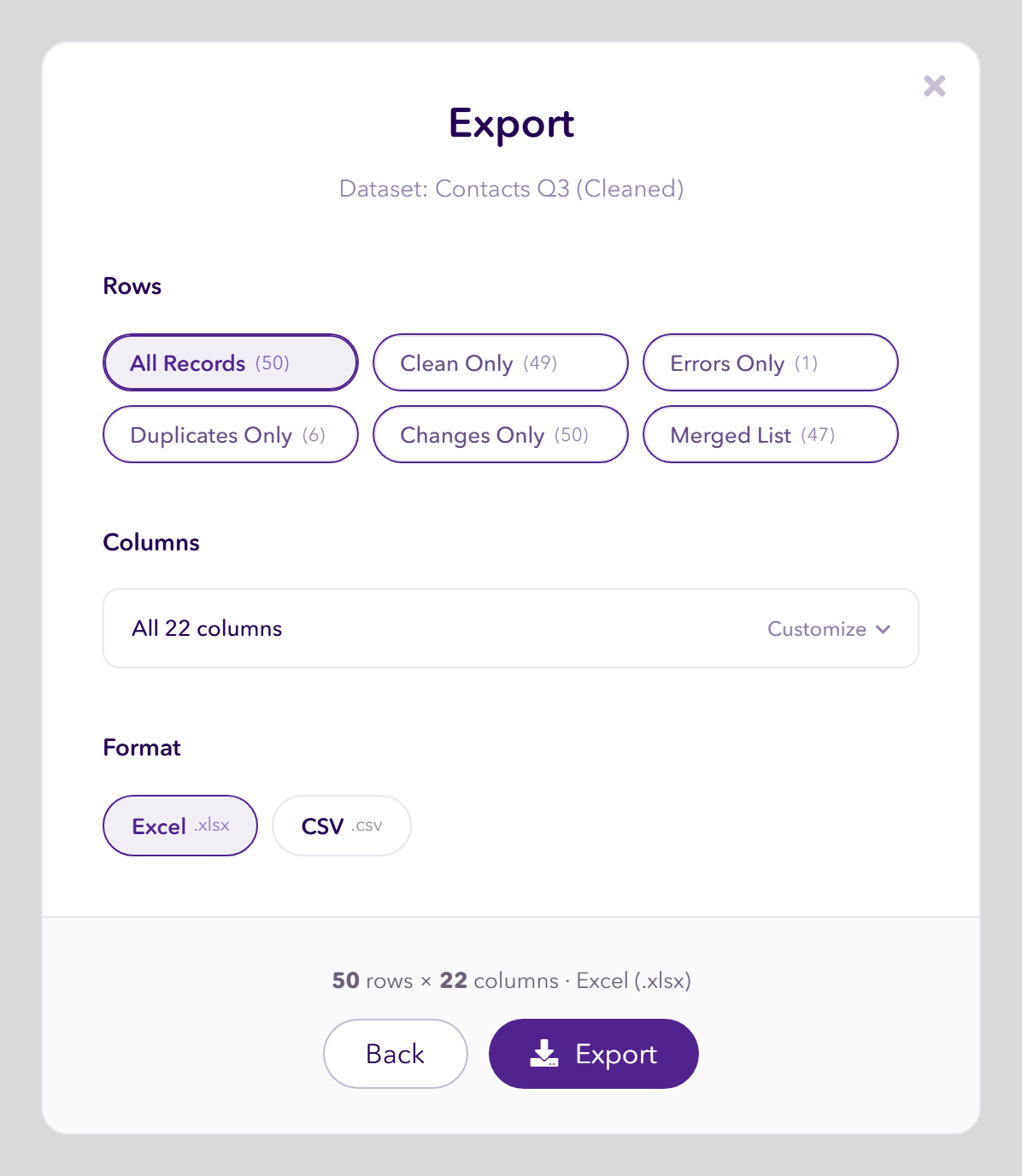
On the Summary, choose Clean Dataset; the Datasets page shows when the run is done. Open the dataset, choose Export, then Cleaned Dataset, and export three times: Clean Only, the rows without a problem in an Error column, for your email tool; Errors Only, to fix by hand; and Duplicates Only, to choose which row of each group to keep, since Clean Only still holds every one of them. With a free account, Merged List also exports the deduplicated list, a separate export you choose: one row per repeat contact, the rows with errors included. Under Columns, Customize lets you send your email tool only the columns it needs.
Common gotchas
- Validation labels don't filter rows. Clean Only reads the Error columns, not the Email Validation column, so an address labeled Disposable Email Address or No Mail Server can still be in it. Filter that column in your spreadsheet before you upload the list.
- Role-based addresses are real inboxes. An address such as info@ or sales@ may be exactly who you want to reach: Validate Email labels it and leaves the decision to you.
- A domain check isn't a mailbox check. Validate Email can tell whether a domain is set up to receive mail, not whether one person's mailbox exists, and Cleansable uses no outside service to test mailboxes.
- Unsubscribes stay with your email tool. Cleansable doesn't know who opted out, so let your email tool's unsubscribe list decide who gets the campaign.
- Export within 24 hours. The dataset's files are deleted 24 hours after the run. Its summary stays; to export again, import the file again.
What is data cleansing? explains the terms, and the FAQ answers where your file is processed and for how long.
. It's free during beta and needs no credit card.
More guides: all guides.