
This guide is for anyone about to import a contact or company list into a CRM: a list from an event, a spreadsheet kept by hand, an export from another system. Every row of the file becomes a record, so inconsistent names and phone numbers turn into messy records, and each duplicate into a second contact to clean up later. You'll set the formats your CRM expects, clean every field, flag the duplicates and export a file ready to import, with the rows that need attention set aside.
1. Set the formats your CRM expects
Before you upload, open Settings → Cleansing Defaults and choose how values should come out: the phone format (for example +1 XXX-XXX-XXXX) and the country for numbers written without a country code, the date format (for example YYYY-MM-DD), and whether states and countries are written in full or abbreviated. These are your defaults for every dataset; in Guided Mode, the gear beside an operation changes a format for one field only.
2. Upload the list and check the field types
Choose Add Data on the Datasets page, then Guided Mode, and drop in the file: CSV or Excel (.xlsx), up to 10 MB and 25,000 rows with a free account. You can also paste the rows from a spreadsheet. Map Fields shows the type detected for each column, with a confidence badge; check the columns your CRM cares about and change any type from its dropdown. Set a column you want kept exactly as it is, such as an internal ID, to Unmapped: it's copied through unchanged.
3. Review the cleaning
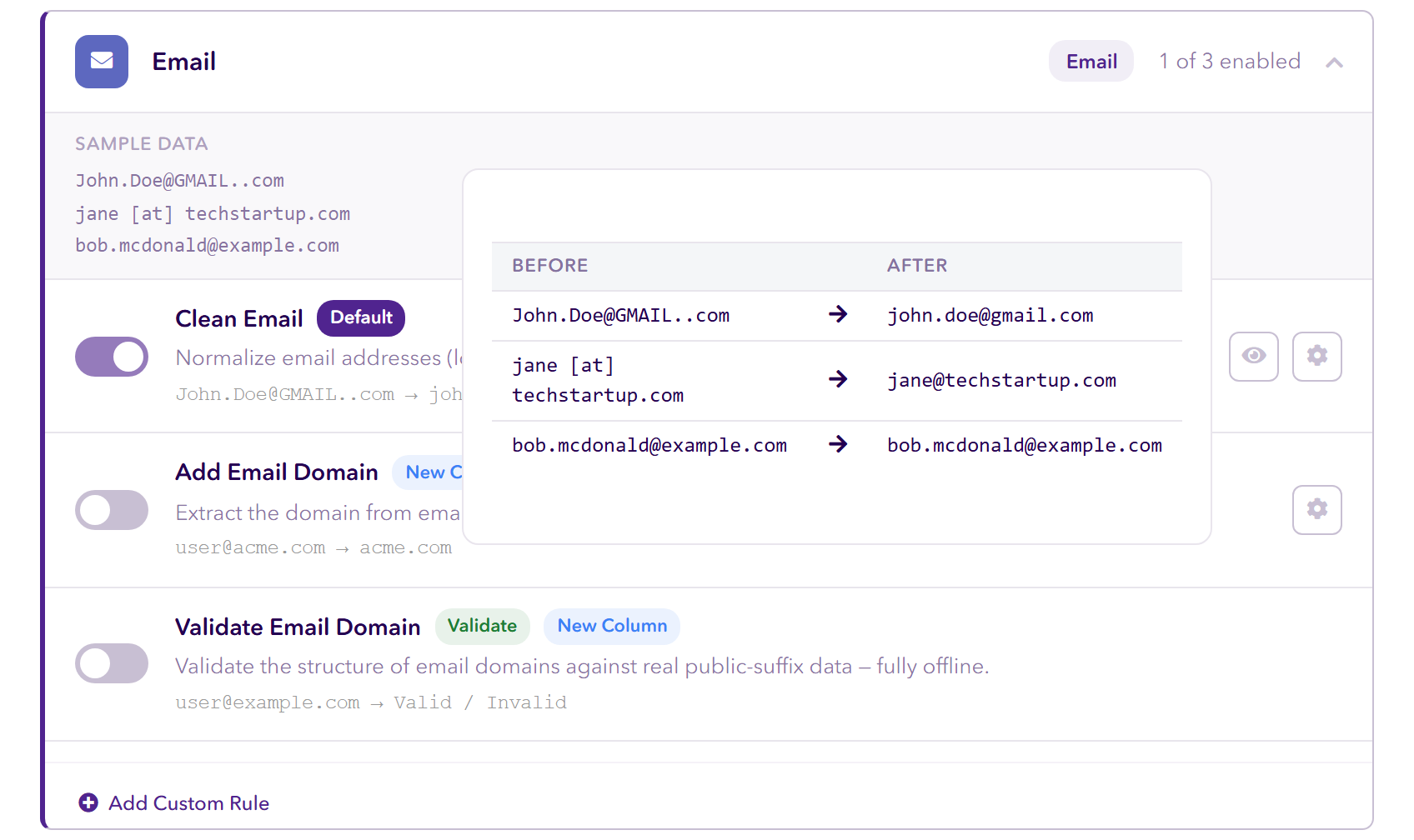
Cleansing Options lists the operations for each field. Each field's default is always on: names are properly cased (smith, JOHN jr becomes John Smith Jr.), email addresses are lowercased with common typos fixed, and phone numbers come out in your format. Turn on the extras your CRM needs, such as Split Full Name for separate first and last name columns, or Validate Phone Number. Preview shows an operation's before and after on values from your own file.
4. Flag the duplicates
On the Dedupe step, Smart mode builds match rules from your columns: the same email address, the same phone line with a similar name, a similar name at the same company or street address. Choose Preview Duplicates to see the groups before anything runs. Each group will share a number in a new Dupe ID column; Cleansable never deletes or merges your records. To build your own rules, see Find duplicates in a CSV or Excel list.
5. Fill the gaps, then run
On the Enrich step, fill-in rules complete empty cells from data already in the row: a city, state or county from the ZIP code, a country from the state, a first or last name from the email address. They fill empty cells only and never look anything up outside. On the Summary, choose Clean Dataset: the file is cleaned on Cleansable's servers in Oregon, United States, and the Datasets page shows when it's done.
6. Check the numbers
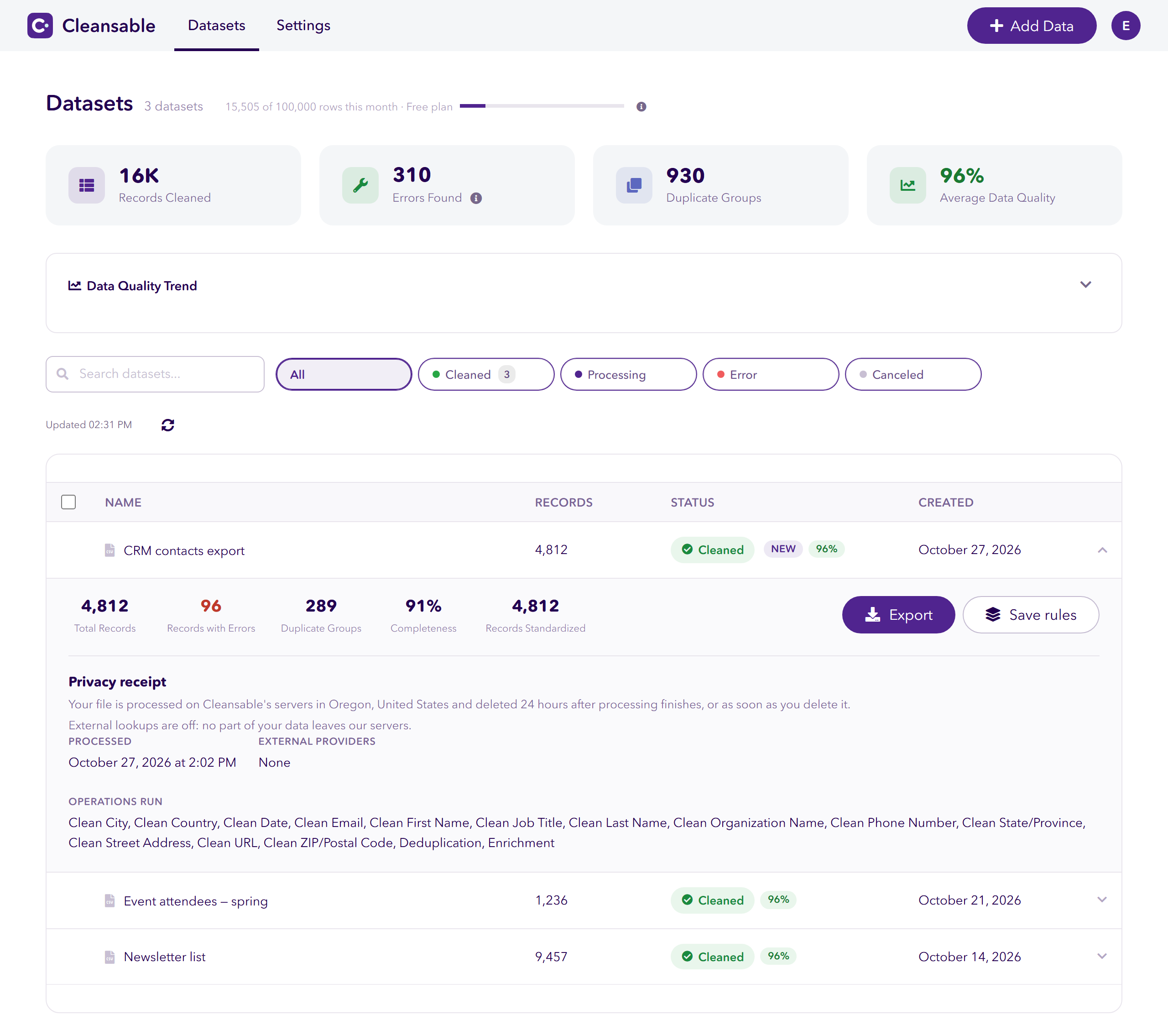
Open the dataset on the Datasets page. Its summary tells you what you're about to import: the records with errors, the duplicate groups, how complete the data is and its quality score, with the privacy receipt for the run.
7. Export what the import needs
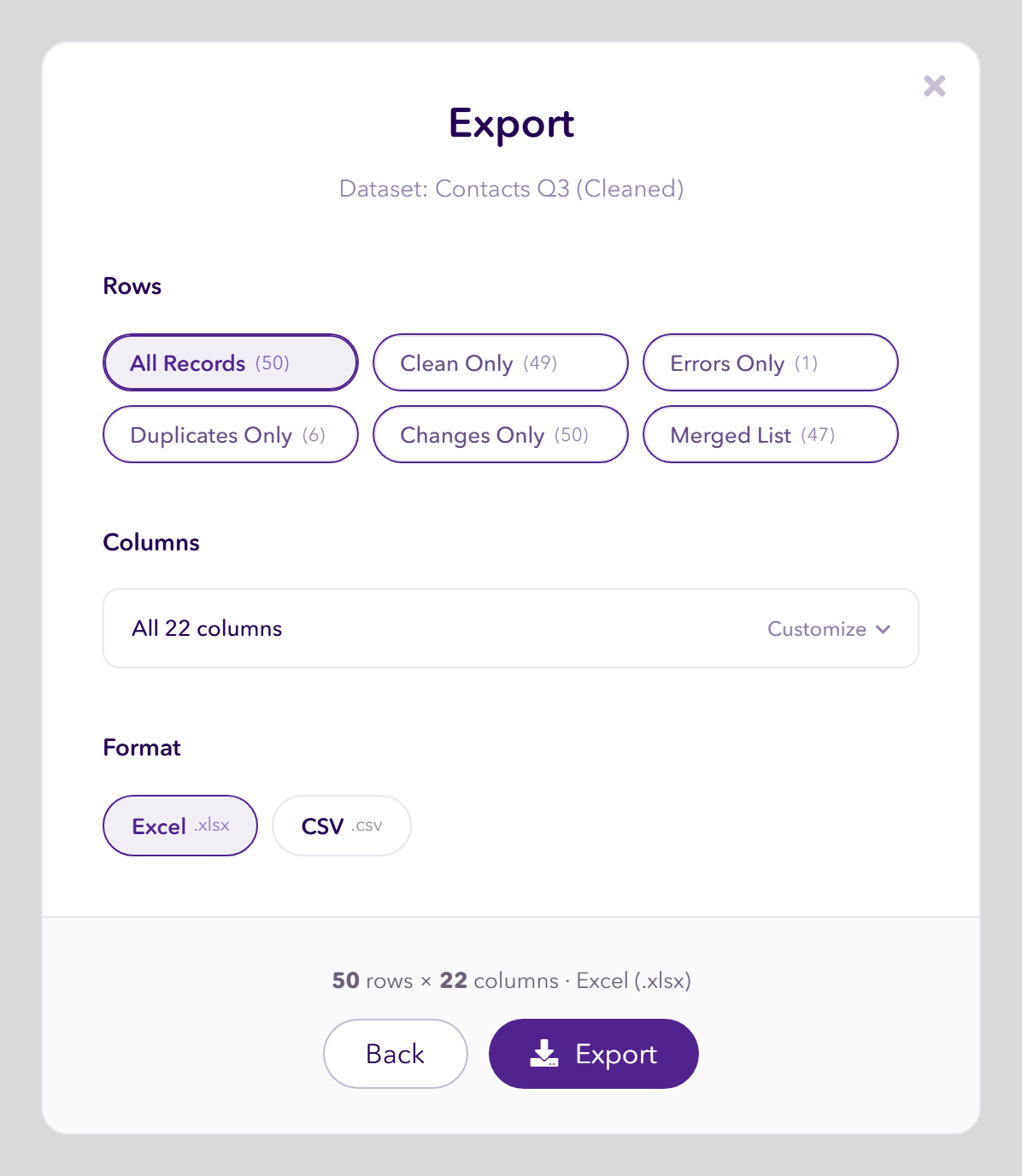
Choose Export, then Cleaned Dataset. Under Rows, Clean Only holds every row without a problem in an Error column: once you've settled the duplicates, that's your import file. Errors Only holds the rest, each problem described in the Error column for its field, to fix and import later. Duplicates Only lists the flagged groups, and Changes Only shows each cleaned value beside the original. With a free account, Merged List exports the deduplicated list, a separate export you choose: each duplicate group reduced to its most complete row, every other row kept, the rows with errors included. Under Columns, choose Customize and keep what your CRM should import; then pick CSV or Excel.
What to check before you import
- Duplicates are flagged, not removed from your file. Clean Only still holds every row of each group: sort by Dupe ID and decide which one to keep, or import the deduplicated list (a separate export, with a free account), which holds one row per group.
- Leave out Cleansable's own columns. Row ID, Dupe ID and the error, validation and enrichment columns are there for your review; untick them under Columns unless you want them in your CRM.
- Know your match field. If your CRM matches imported rows to existing records by a field such as the email address, make sure that column is clean and filled in.
- Try a small batch first. Import a few rows and look at the records in your CRM before you import the rest.
- Export within 24 hours. The file is deleted from our servers 24 hours after the run. The dataset's summary stays; to export again, import the file again.
What is data cleansing? explains the terms; the FAQ and Security & privacy cover what happens to your file on our servers.
. It's free during beta and needs no credit card.
More guides: all guides.