
Data deduplication, or “dedupe” for short, is the work of finding the records in a list that describe the same thing: the same person, the same company, the same address. Duplicates creep into almost every contact database. A form gets filled in twice, an event list is imported twice, two spreadsheets are combined, or a sales rep adds a contact who's already there.
They're rarely identical. One row says Jon Smith, JSmith@Acme.com; another says Jonathan Smith, jsmith@acme.com, (555) 123-4567. A person sees one customer at a glance. Software only sees it if it's told how to look.
Why duplicates are costly
- Duplicate outreach. The same person gets your campaign twice, or two reps call the same lead. It looks careless and drives unsubscribes.
- Split history. Notes, orders and conversations end up on two records, so nobody sees the whole relationship.
- Wrong reports. Contact counts, pipeline and campaign results are inflated or split across copies.
- Wasted spend. Many CRMs and email platforms charge by the number of contacts stored, so you pay for every copy.
- Import trouble. A duplicate on a field that must be unique, such as an email address, gets rows rejected or updates the wrong record.
Exact, fuzzy and phonetic matching
Every method compares records field by field; what differs is how forgiving the comparison is:
- Exact matching counts two values as the same only when they're identical. Done well, it compares cleaned values rather than raw text, so (212) 555-0123 and +1 212 555 0123 count as one number.
- Fuzzy matching scores how similar two values are and calls them a match above a threshold, so Jon Smith and John Smith can match. A lower threshold catches more typos, initials and nicknames, but also more false matches; a higher one is safer and misses more.
- Phonetic matching compares how names sound rather than how they're spelled, so Steven and Stephen, or Smith and Smyth, line up even though the letters differ.
Match keys and match rules
The value a method compares is the match key: the field reduced to a standard form, such as an email address in lowercase, a phone number as its digits with the country code, or a company name with Inc. and Incorporated treated as one. Keys are combined into match rules, such as “the same email address” or “the same phone number and a similar name”, and records that satisfy a rule form a group of duplicates.
The same email address is the safest rule. An address normally belongs to one person and is easy to standardize. Two caveats: a shared inbox like info@ or sales@ belongs to many people and shouldn't count as a match, and one person can have several addresses, so an email rule finds true duplicates but not all of them. A name is the riskiest field to match on by itself — there are a lot of John Smiths — so a name match should be backed by something else: the same company, address or phone number.
Review before anything is deleted
Every method makes mistakes, and the expensive ones are false matches: a father and son at the same address, two colleagues behind one switchboard number, two people with a common name at the same large company. In most CRMs, merging two records or deleting one can't be cleanly undone, and a wrong merge takes activity history, ownership and consent settings with it. So a careful process keeps finding separate from acting: flag the groups, review them, then decide.
Survivorship: the hard part
Once two records are known to be the same, someone has to decide what to keep. That's survivorship: which record survives, and which value wins in each field. The newest phone number, or the one from the most trusted source? The most complete address? The oldest creation date, so that attribution stays right? And an opt-out on either record must win, every time. These are business decisions, not matching problems, and they deserve a person's judgment.
Cleansable's deduplicated list makes one simple choice you can check: one row per group, the most complete one (the row with the most cells filled in; the first in the file wins a tie), with the group's other rows left out. Values are never combined across rows, so a detail only a left-out row holds, an opt-out included, is not in the list: review the groups before you rely on it. Nothing is deleted from your file — the deduplicated list is a separate export you choose, with a free account.
How Cleansable does it
Cleansable finds and flags duplicates in CSV and Excel lists, in one of two modes:
- Smart mode reads your columns and picks the rules for you: the same email address or LinkedIn profile; the same phone number with a similar name; a similar name at the same company or street address. For a list of companies, it matches on the website, the phone number, or a similar company name (in the same city, when the list has one). A shared inbox such as info@ is never treated as one person's address.
- Advanced mode lets you build your own rules, field by field: Exact, Fuzzy with a similarity threshold, or Fuzzy + Phonetic for names.
Here is the Dedupe step in Smart mode on a sample file, with its rules and the first groups it found:
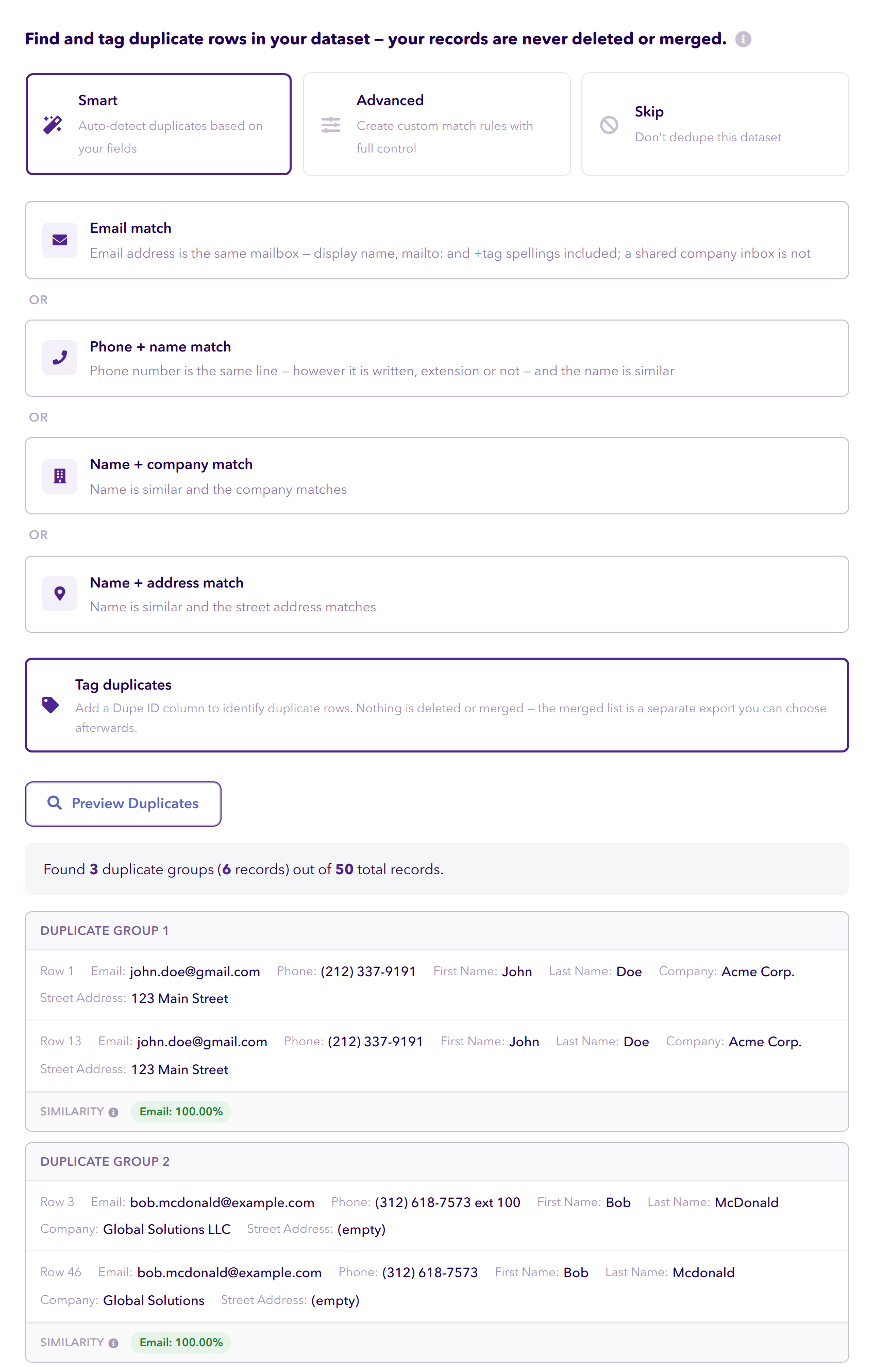
Each group of duplicates shares a Dupe ID in a new column, and you can preview the groups before the run. Cleansable never deletes or merges your records: export Duplicates Only to review every group and decide in your spreadsheet or CRM which record to keep, or, with a free account, the deduplicated list described above. Matching runs on rules, not AI, so the same file gives the same groups every time. Your file is processed on Cleansable's servers in Oregon (US) and deleted 24 hours after the run, and its rows are never written to our database, logs, error reports or backups.
Keep reading
- How to find duplicates in a CSV or Excel list: the steps in Cleansable, from upload to review.
- How to prepare a list for a CRM import: flag the duplicates before they become CRM records.
- Frequently asked questions: how Cleansable finds duplicates, and where your data is processed.
- Security & privacy: what happens to your file, and what we keep.
More guides and explainers: Resources.