
This guide is for anyone with a contact or company list in a spreadsheet who needs to know which rows are the same person or company: a CRM export, sign-ups from several forms, two lists put together. You'll check the match rules, preview the groups before anything runs, and finish with a file of just the duplicates, each group sharing a number in a Dupe ID column. Cleansable finds and flags them; which row to keep is your call.
1. Put the list in one file
Cleansable takes a CSV or an Excel (.xlsx) file with the column names in the first row; save an older .xls workbook as .xlsx or CSV first. With a free account a file can be up to 10 MB and 25,000 rows. Duplicates are found within one dataset, so if two lists should be compared with each other, combine them into one file before you upload.
2. Start a dataset in Guided Mode
Choose Add Data on the Datasets page, then Guided Mode. Drag the file in, choose Browse Files, or use Paste from Spreadsheet and include the row of column names; if a workbook has more than one sheet, you pick the one to import. Quick Clean would run the Smart duplicate rules in one click, but Guided Mode lets you check them and preview the groups first.
3. Check the field types
Map Fields shows the type Cleansable detected for each column, with a confidence badge: Exact match, Recognized format, or a percentage when the type was read from the values or from a header that's close. The duplicate rules are built from these types, so check the columns that identify a person or a company: email, phone, first and last name, company, street address. Change a type from its dropdown; a column set to Unmapped is copied through unchanged.
4. Choose how duplicates are matched
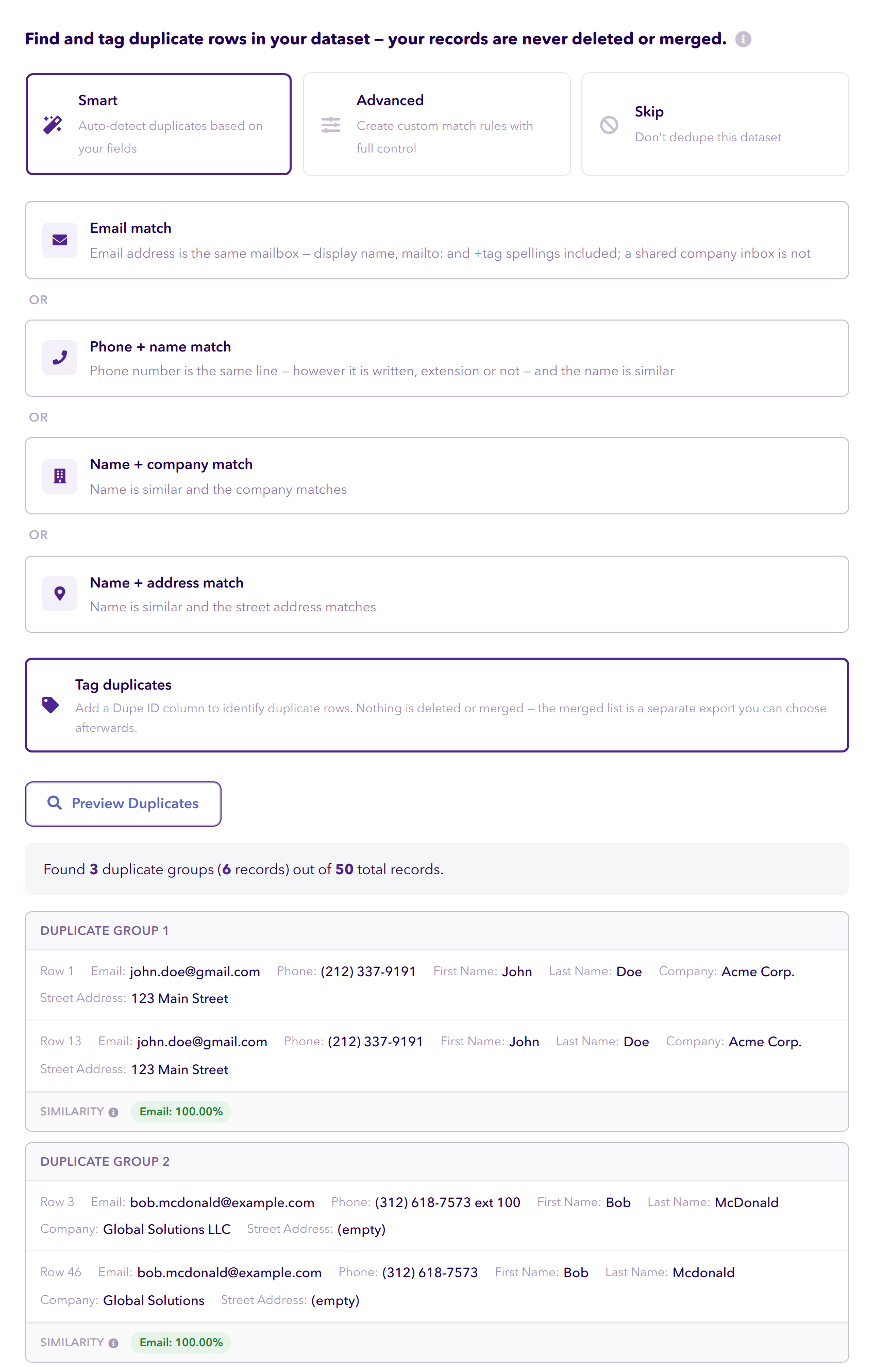
Next takes you through Cleansing Options, where each field's default cleaning is already on, to the Dedupe step. Smart mode lists the rules it built from your columns, and two rows that meet any one rule are duplicates. For a contact list with those columns, the rules are: the same email address, however it's written; the same phone line with a similar name; a similar name at the same company; a similar name at the same street address. A similar name on its own counts only in a file with no email, phone, company, address or city to confirm it.
Advanced mode lets you build your own rules: choose the fields, then match each one Exact, Fuzzy with a similarity threshold, or Fuzzy + Phonetic for names. At 80%, a fuzzy name match allows initials, nicknames and typos; at 90%, typos only. Under Advanced Settings, Cross-Field Matching compares a Full Name column with First Name + Last Name.
5. Preview the duplicates
Choose Preview Duplicates. Cleansable shows how many groups it found and the rows in each, with a similarity score for the fields that matched. If rows are grouped that shouldn't be, build your own rules in Advanced mode and preview again. On a large file the preview reads a sample of the rows, so the run itself can find more. Tag duplicates, the one option below the rules, adds the Dupe ID column.
6. Run it
Continue through Enrich, where fill-in rules can complete empty cells, to the Summary, and choose Clean Dataset. The cleaning runs on Cleansable's servers in Oregon, United States, so you can close the page; the Datasets page shows the progress, then the dataset's duplicate groups.
7. Export the duplicates and review them
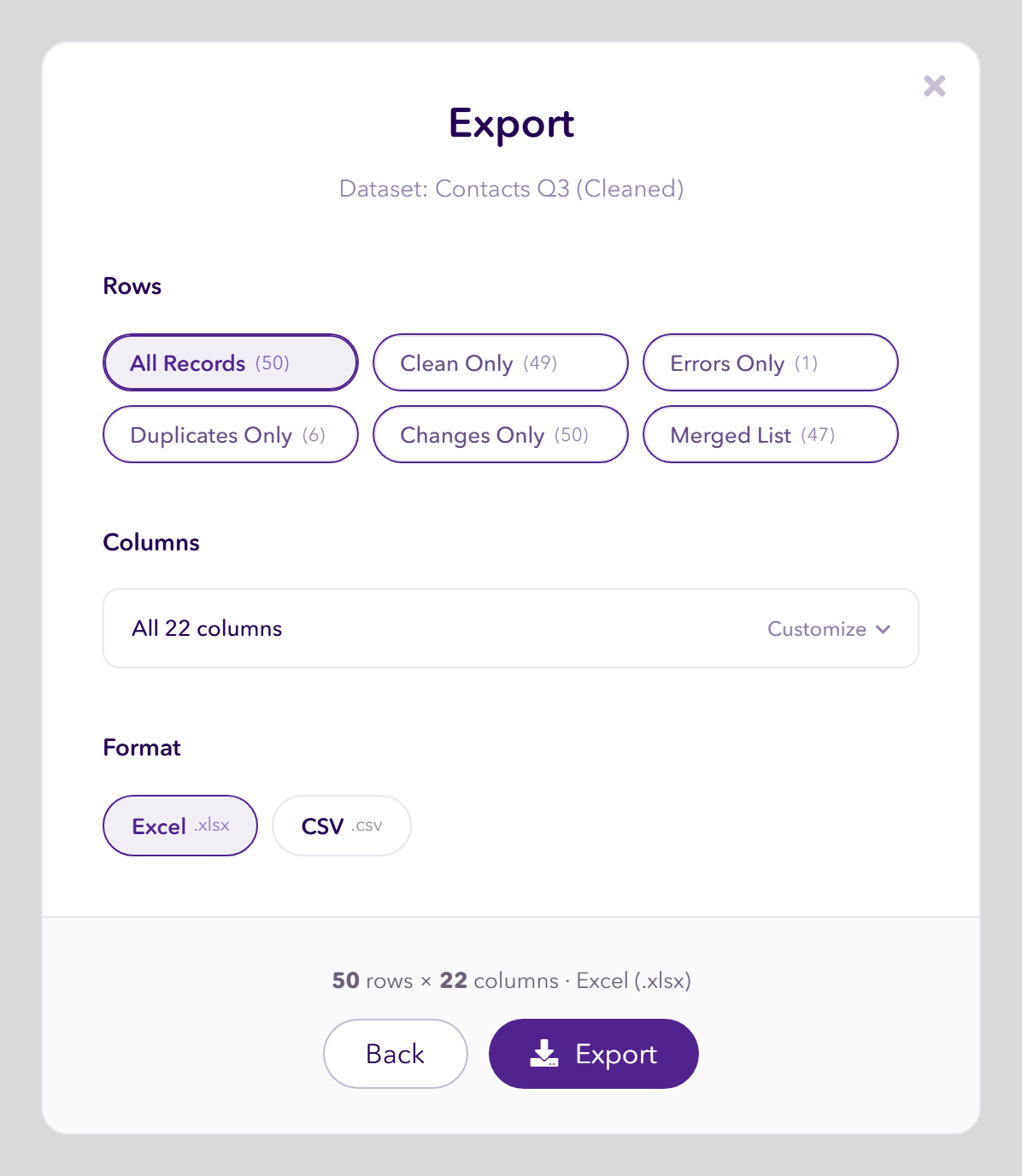
Open the dataset, choose Export, then Cleaned Dataset, and under Rows pick Duplicates Only. Rows in the same group share a number in the Dupe ID column, and rows without a duplicate are left out of this export. Sort by Dupe ID in your spreadsheet to see each group together, then decide which row of each to keep. The Row ID column matches every row to the same row of your original file.
8. Or remove the duplicates in a deduplicated list
With a free account, Merged List under Rows exports the deduplicated list: every row of your file, with each duplicate group reduced to one row — the most complete, the first in the file breaking a tie. Values are never combined, and your file is never changed: the deduplicated list is a new export you choose, ready to import.
Common gotchas
- A shared inbox isn't a person. Two contacts who share an address such as info@ or sales@ aren't flagged as duplicates by the email rule.
- Nicknames need the surname. Bob matches Robert only when the surname matches exactly, and Robert and Roberta stay two people at any threshold.
- Fuzzy doesn't loosen identities. For an email address, phone number or website, Fuzzy means the same as Exact: two values one character apart are two contacts.
- Each list is checked on its own. If you split a big file to fit the limits, a pair of duplicates that lands in different parts won't be flagged.
- Export within 24 hours. The dataset's files are deleted 24 hours after the run. Its summary stays on the Datasets page; to export again, import the file again.
What is data deduplication? explains exact, fuzzy and phonetic matching; the FAQ and Security & privacy cover where your file is processed and how long it's kept.
. It's free during beta and needs no credit card.
More guides: all guides.